Keyboard Shortcuts
Most operations in the Visual Editor have keyboard shortcuts, and many are listed in their respective areas. However, it's always good to see them in one place!
Please create an issue in the GitHub repo with what you're missing and we'll see if we can get it added :)
Canvas and Visual Focus
Deneb supports Power BI's keyboard-focus behavior, so you can reach and leave the visual without using a pointer. When the visual has canvas-level focus (by tabbing between visuals on the report page):
| Function | Shortcut |
|---|---|
| Focus into the visual | Enter |
| Move focus between elements in the visual | Tab / Shift + Tab |
Tab focus wraps at both ends of Deneb's UI, so pressing Tab on the last focusable element returns to the first (and vice versa with Shift + Tab). This prevents focus from escaping into other visuals on the canvas.
Esc behaves differently depending on where you are:
- When viewing a visual, Esc returns focus to the canvas so you can continue tabbing to the next visual.
- In the editor interface (with focus outside the Monaco editor), Esc sets focus to Power BI's Back to report action, which you can then activate to return to the canvas.
Vega and Vega-Lite don't currently surface their rendered marks, axes, or legends as focusable elements, so in view mode, the only things that can receive Tab focus inside the visual are parameter inputs bound to HTML elements. Everything else in your specification is reachable only via the mouse pointer and screen reader (if the marks have been set up accordingly).
When focus is on a JSON editor, Monaco captures Tab for indentation. To move Tab back onto Deneb's cycle so you can leave the editor, toggle Monaco's Tab trap:
- Windows / Linux: Ctrl + M
- Mac: Ctrl + Shift + M
Editor Pane
| Function | Shortcut |
|---|---|
| Expand or collapse | Ctrl + Alt + Space |
| Navigate to Specification pane | Ctrl + Alt + 1 |
| Navigate to Config pane | Ctrl + Alt + 2 |
| Navigate to Settings pane | Ctrl + Alt + 3 |
| Apply Changes | Ctrl + Enter |
| Toggle Auto-Apply | Ctrl + Shift + Enter |
| New Specification | Ctrl + Alt + N |
| Generate JSON Template | Ctrl + Alt + E |
| Help | Ctrl + Alt + H |
In-Editor
Deneb uses Monaco Editor for JSON editing, which comes with its own keyboard shortcuts and can significantly improve your productivity. You can view a list of shortcut keys by accessing the command palette, either from the context menu (right-clicking the editor), or pressing Ctrl + F1, e.g.:
Context menu

Command Palette
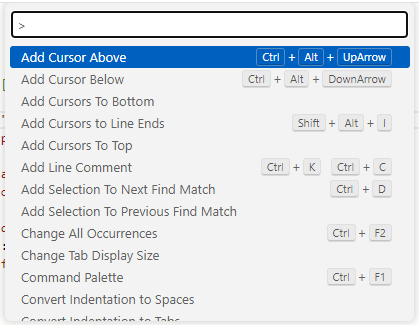
Some useful commands are:
| Function | Shortcut |
|---|---|
| Format document | Ctrl + Alt + R |
| Toggle line comment | Ctrl + / |
| Toggle block comment | Shift + Alt + A |
| Find | Ctrl + F |
| Replace | Ctrl + H |
| Quick Fix / Code Action | Ctrl + . |
Debug Pane
| Function | Shortcut |
|---|---|
| Set view to Source Pane | Ctrl + Alt + 6 |
| Set view to Data Pane | Ctrl + Alt + 7 |
| Set view to Signals Pane | Ctrl + Alt + 8 |
| Set view to Logs Pane | Ctrl + Alt + 9 |
| Expand or collapse pane | Ctrl + ` |
| Zoom preview out by 10% | Ctrl + Alt + Minus(-) |
| Zoom preview in by 10% | Ctrl + Alt + Plus(+) |
| Zoom preview to actual size | Ctrl + Alt + 0 |
| Zoom preview to fit available space | Ctrl + Alt + * |
Debug Viewer Tables (Source, Data and Signals)
| Function | Shortcut |
|---|---|
| Move focus between cells | Arrow keys |
| Move focus to start / end of the current row | Home / End |
| Open the value inspector for the focused cell | Enter / Space |
| Close the value inspector | Escape |
| Leave the grid | Tab |