Tooltips
We saw in the worked example, that it's fairly straightforward to add tooltips to a specification, but we'll unpack on this page in a bit more detail.
If you haven't read it already, it's worth reviewing the preceding page to understand some of the considerations for integrating back into Power BI. It will certainly help with understanding the logistics around report page tooltips in particular.
Tooltip Strategy
Vega and Vega-Lite both provide the ability to customize how their tooltip events can be interpreted. Deneb contains a tooltip handler written specifically for Power BI, which will display under the following conditions:
-
Tooltip Handler is enabled in the Tooltips section of the Project setup pane in the Visual editor. This is enabled by default.
-
An appropriate
tooltipproperty is assigned to a mark. Refer below for the recommended syntax for each provider. -
A tooltip-enabled mark is hovered over.
Data Point Resolution
Provided that your mark's datum is not transformed or mutated away from the "dataset" and represents the "pure" row context passed in, Deneb can resolve this back to Power BI for delegation. Note that row context is only required for resolving report page tooltips; default tooltips are rendered from the tooltip data as plain key/value pairs and will work with any datum.
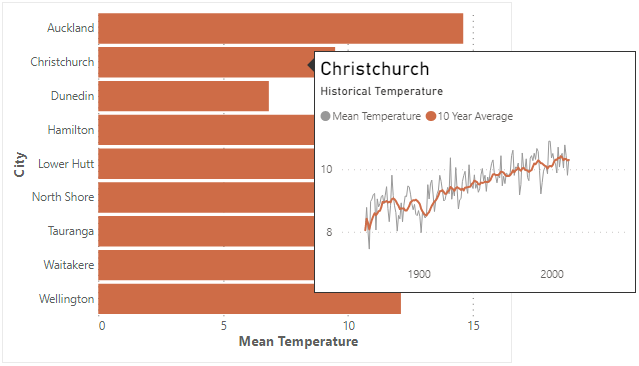
If a report page exists with at least one of the columns in the current datum, then Power BI will display it for the current row context, e.g.:
If there is no suitable report page for the current datum or you have specified a default tooltip in the Tooltip menu in Power BI's Properties pane, then a default tooltip will be displayed, e.g.:
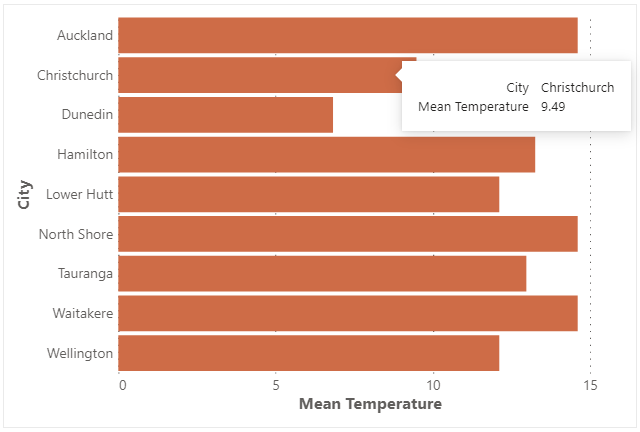
A default tooltip will display all values for the current mark's datum, including any other columns or measures bound to its particular row context.
If the title of a tooltip field matches the name of a column or measure in the Values data role, Deneb will check whether a format string is set in the data model and apply it automatically. If this cannot be resolved, then you can consider applying a format manually.
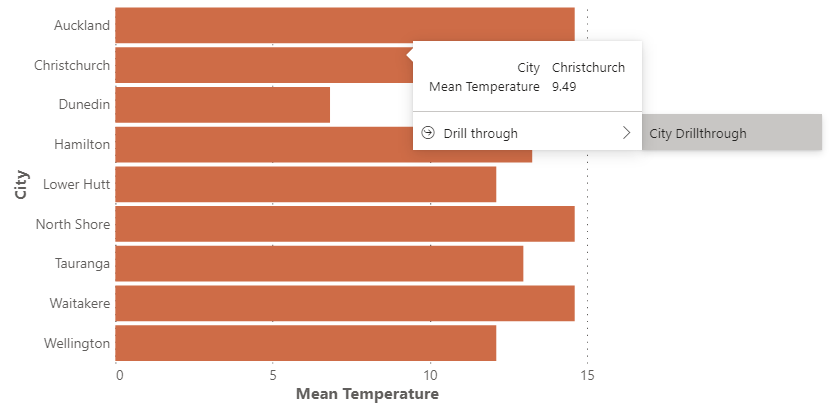
If you have enabled modern tooltip support in your report, and a data point has a corresponding drill-through page, this is resolved in the tooltip, e.g.:
Default Tooltip Styling
This is done in the usual way, i.e., in the Tooltip menu in Power BI's properties pane.
Vega-Lite Syntax
The simplest approach for this is recommended, e.g.:
{
    ...
        "mark": {
            ...
            "tooltip": true,
            ...
        },
    ...
}
Vega Syntax
With Vega, you need to specify the tooltip signal in your mark's encode property, e.g.:
{
    ...
    "encode": {
        "enter": {
            ...
            "tooltip": {
                "signal": "datum"
            },
            ...
        }
    },
    ...
}
Sentence Template Support
Sentence templates for tooltips were introduced to Power BI in June 2026. These allow you to add free text to the standard tooltip, using brace-enclosed tokens to denote where field values should be inserted.
Deneb supports this integration, with one important caveat: any field referenced in a sentence template must be an explicit component of the tooltip datum that Deneb resolves for the hovered mark. If a field isn't present, its placeholder is left as-is in the rendered sentence. The simplest way to guarantee this is an explicit tooltip encoding channel (Vega-Lite) or tooltip encode entry (Vega) that enumerates all required fields.
Note that the Tooltips menu is a standard container property owned by Power BI, so the sentence itself cannot be read, set, or changed from within your specification, and will not travel with a Deneb template - it needs to be configured on the visual itself.
For a full worked example - including the common pitfalls and how to surface specification-only fields (such as transform output) into your sentences - see the blog post: How-To: Power BI Sentence Tooltips with Deneb.
'Debugging' with Tooltips
If you're using an approach to display the underlying data point (e.g., Vega-Lite) rather than the resolved tooltip info that Vega provides by setting to true, we're able to see a bit further under the hood, e.g.:
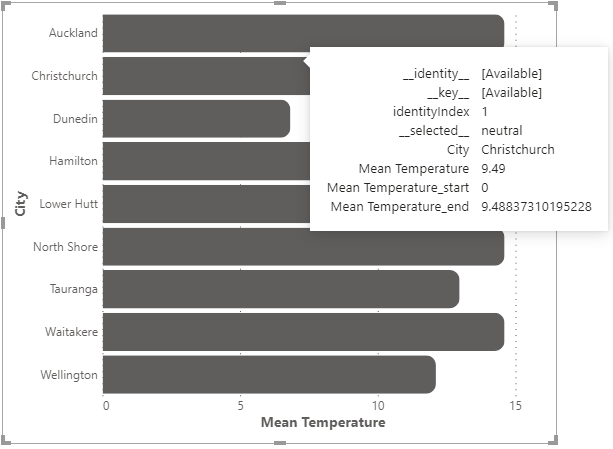
This can help determine which additional fields or calculations may be applied to a datum for use in expressions. It can also help to determine whether a mark still has row context and can be reconciled back to Power BI for interactivity. If a tooltip's datum contains the __row__ field, then this is a slam-dunk:
Please refer to the interactivity documentation for a further explanation of what these mean.
Limitations and Considerations
-
Report page tooltip integration with Power BI is wholly dependent on the correct row context, as the datum must be reconciled back to a row of the visual dataset. Default tooltips (including sentence templates) are rendered from the tooltip data as plain key/value pairs and do not require row context. Refer above, or to the Overview page for more information about ensuring row context is preserved.
-
Adding a tooltip does not automatically add visual feedback or effects. If you want to track the position of the resolved data point more visually (e.g., for a line chart), you will need to add suitable marks to do so. Both Vega and Vega-Lite have examples you can refer to.
-
Development so far has been focused on Power BI integration. If you deviate from the above patterns, tooltips may not display correctly. If you find any such use cases, please create an issue with the appropriate reproduction steps (e.g., example specification and/or data) and we'll see what we can do about it.