Getting Started
Installing from AppSource
Deneb is available on AppSource, and this is the most straightforward way to get started and automatically stay up to date with the latest version.
If you like Deneb, please leave us a review - we'd love to know how you're getting on!
Within Power BI Desktop
-
To add: in Power BI Desktop, choose Insert > More visuals > From AppSource in the ribbon:

Or by clicking the ellipsis in the Visualizations pane and choosing Get more visuals:

-
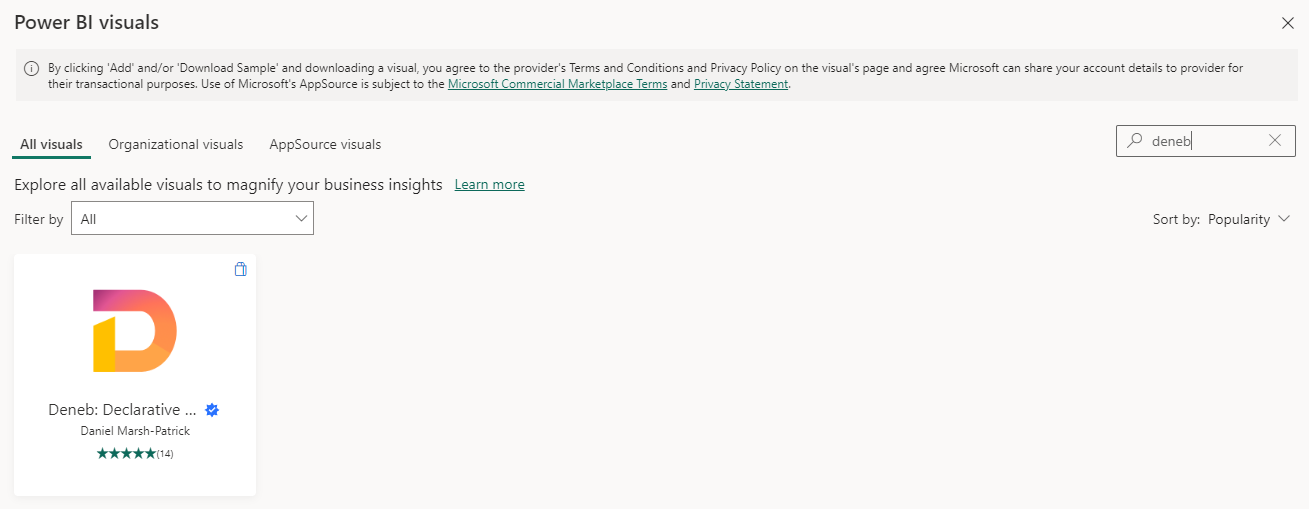
In the Power BI Visuals dialog, search for Deneb - a shortlist of visuals will be displayed.
-
Click on Deneb in the shortlist to open the visual.
-
Click the Get It Now button to add to your report.
-
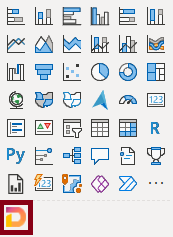
After a short time, Deneb will be visible in your Visualizations pane:
You're ready to start creating.
Standalone Version
Because Deneb is certified, there are certain restrictions imposed upon it. If you wish to use features such as loading images from remote URLs, you will need to download the standalone version.
Note that the standalone version is not tied to AppSource and will require manual updates when new versions are published. This can be mitigated by setting it up as an organizational visual if you are using it across many reports.
The latest version is published via Releases in Deneb's GitHub repository. The packaged .pbiviz file is available in the Assets section for a particular release.
You can also use this link to jump straight to the latest release page.
Please be careful when installing custom visuals from unknown or unsolicited sources. I can assure you that our intentions are honorable, but you should exercise caution around your data. If you have any doubts, work with your admins to ensure all necessary checks and balances are carried out. The Enterprise and Security FAQ is written to help with those conversations.
Identification
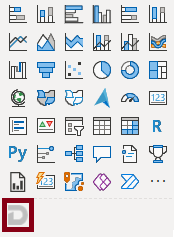
The standalone build can be identified by its greyscale version of the regular Deneb icon:
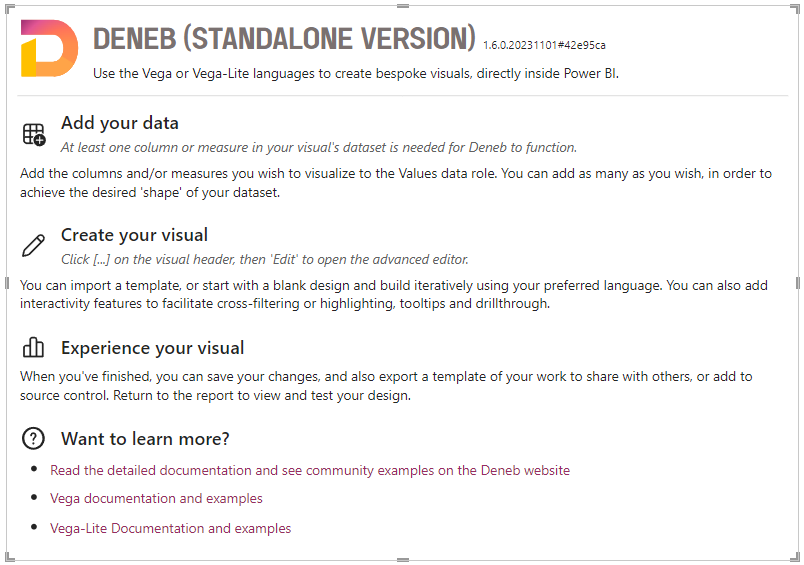
The landing page also specifies the standalone version:
Early Access Build Channels
Due to the AppSource submission process being lengthy, users wishing to trial or provide feedback on early-access releases can find more information about installing these builds here.