Change Log
2.0.1 (2026-10-18)
Deneb 2.0.1 has passed certification and is currently undergoing deployment to your reports. This can take a couple of weeks from the publish date.
Bug Fixes
- Vega specifications that position marks in
encode.enterno longer render too tall and clip content outside the plot area (such as axis labels), and size correctly within the visual (#773) - Date fields no longer show their UTC offset in the debug pane data/signal viewers or in tooltips that display raw values, and resolve to midnight (#775)
- Cross-highlight status fields (
__highlightStatus) no longer reportonfor every row when another visual cross-highlights, and returnofffor rows outside the highlight (#753)
2.0.0 (2026-09-08)
Dataset Row Limit Changes
If using the Override row limit feature, Microsoft no longer guarantees support for fetching additional data beyond the initial dataset in scenarios where you wish to export a visual to PDF or PowerPoint; it is recommended for report viewing only.
To provide a better initial ceiling for authors, the initial dataset row limit has been increased to the maximum 30,000 rows that custom visuals can request.
A New Parsing and Rendering Pipeline
From the beginning, Deneb's spec parsing and embed process was always a case of "however it could be gotten to work in Power BI," and has been somewhat of an architectural weak point. In this update, the whole process - from submission of your spec through to its embedding - has been rewritten and optimized.
In conjunction with the architectural improvements made in 1.9, this now opens the way for many features that were too hard to deliver without complicating things further. And, we're getting some of these features into this release, too! Read on for details on what else you have to enjoy.
Field Parameters
Field parameter support has been a tricky one to solve. We've had an idea about how to do it for a while, but this has been dependent on some changes to the Power BI visuals API, and having the necessary data processing pre-requisites in place for Deneb. As such, folks have had workarounds available for some time, which haven't been supported, but we want to try and help with this as much as we can.
-
When columns or measures belonging to a field parameter are added to the Values data role, Deneb can consolidate them into a single array-valued column named after the parameter, with optional companion fields for names, format strings, and cross-highlight state.
- Consolidation is controlled via the Consolidate field parameters toggle in the Semantic model integration section of the Project setup pane, and is on by default for new projects.
- Projects migrated from earlier versions default to off to preserve compatibility with existing workarounds; you can opt in at any time.
-
A per-field Treat as field parameter override is also available for flagging a regular column or measure as a parameter.
- This is useful for template compatibility or for testing
flattentransforms with non-parameter data. - Templates are aware of the new structure: assigning a regular field to a slot exported as a parameter auto-sets this flag and enables consolidation, so your spec's transforms continue to work without manual intervention.
- This is useful for template compatibility or for testing
-
Autocomplete in the JSON editor has also been extended to suggest the companion fields currently enabled for each dataset entry (for example,
__names,__highlight,__format), making them easier to discover as you build your specification.
For projects migrated from earlier versions of Deneb (prior to 2.0), pass-through is the default in order to preserve backward compatibility and avoid breaking existing specifications. You will need to manually enable Consolidate field parameters in an upgraded visual if you want to work with them. For a brand new visual, the consolidation of fields for field parameters will be enabled by default.
For full details on how to work with field parameters, we have a dedicated page for them in our documentation.
Supporting Fields Configuration
To date, Deneb has been very eager and opinionated about adding supporting fields to the dataset. These range from values that help manage selection state to those that support formatting and cross-highlighting.
A popular request has been to allow developers to configure these fields, particularly in advanced cases where they aren't desired and can create unnecessary noise downstream during debugging or transformation work. In this release, you are now able to configure which fields are included on a per-field basis and to enable formatting strings and values for columns, if you need them.

The main section of the dataset documentation has been updated with more details, but here's a high-level overview of what you can expect for new projects:
Supporting fields default as follows, where Unavailable indicates the field type cannot carry that supporting field:
| Supporting field | Column | Measure | Field parameter |
|---|---|---|---|
| Highlight value | Unavailable | Enabled * | Disabled * |
| Highlight status | Unavailable | Disabled * | Disabled * |
| Highlight comparator | Unavailable | Disabled * | Disabled * |
| Format string | Disabled | Disabled | Disabled |
| Formatted value | Disabled | Disabled | Disabled |
| Field names | Unavailable | Unavailable | Disabled |
| Treat as field parameter | Disabled † | Disabled † | Unavailable |
* Only visible if cross-highlight is enabled.
† Only visible if field parameter consolidation is enabled; used to manually flag a regular column or measure as a field parameter.
- Each supporting field is toggled individually from its row in the tree.
- A small accent dot on a field's header indicates the field is currently producing at least one supporting field in the dataset, whether by default or by explicit configuration.
- The Reset button in each field header is enabled only when you have explicitly configured that field. Clicking it removes the explicit configuration and reverts the field to the defaults above.
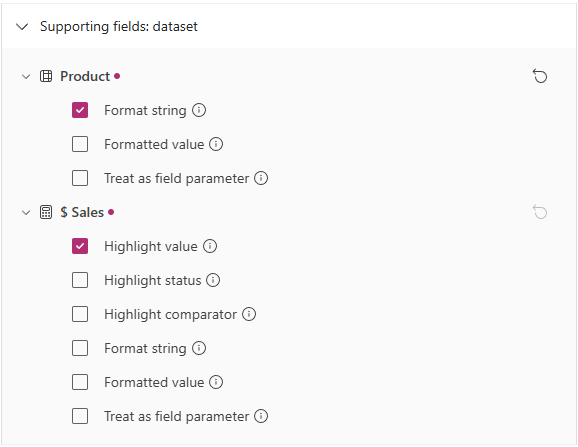
Two warnings are surfaced via the Settings pane's message bar when supporting-field configuration drifts from cross-highlight expectations:
- If cross-highlight is enabled but no measure has a highlight companion selected, the visual will not receive highlight values to encode against.
- If cross-highlight is disabled but at least one measure has a highlight companion selected, the selection is redundant and will produce no visible effect.
- All fields will remain as they have been managed previously (i.e., you get all of them, except for the new format-related fields for columns, which default off).
- When you are ready (and if you want to), you can navigate to the Supporting fields: dataset section of the Project setup pane to configure them as you want. At this point, your settings will remain in place for the lifetime of your project.
- Importing a v1 template will produce the same results as an in-place migration, due to this feature not being present at the time. Again, you can tailor these after importing the template, and any subsequent export will retain the preferred supporting field assignments.
Continuous View
To date, any changes external to Deneb on the canvas that affect the generated dataset - slicing, cross-filtering from other visuals, filter pane changes - would trigger a full re-render, effectively resetting the view back to its initial state each time. The changes to the parse and render pipeline described above have enabled a long-requested capability: a continuous view that stays durable across dataset updates, provided the dataset is eligible.
When enabled, Deneb patches the updated data into the existing Vega view rather than recompiling the specification. This preserves:
- Current view state - zoom, pan, facet page, and anything else driven by Vega signals.
- User input values - signals bound to form widgets (dropdowns, sliders, etc.) retain whatever the user has selected.
- Selection state - marks selected before the update remain selected after it, as long as their datum is still present in the new data.
Eligibility is driven by two things:
- Row count. Patching is intended for datasets that are not too large. By default it applies up to 500 rows, configurable up to a hard ceiling of 5,000 rows - beyond this point the main thread cannot safely support patching and you would notice severe performance degradation. Beyond either value, Deneb falls back to the standard recompile-and-re-init path.
- Spec compatibility. Some spec shapes - for example, force transforms involving aggregates - cannot be patched reliably. In those cases Deneb also falls back to a full recompile and writes a warning to the Logs pane so you know why.
Because this feature needs nuance in how it works and is understood, it is off by default and can be enabled via the Enable patching for hosted datasets option in the Continuous view section of the Project setup pane. That section will also tell you whether patching is currently active or inactive for your present dataset, so you can see at a glance whether updates are being patched or recompiled.
Refer to Dataset for further guidance.
Canvas Renderer: Scale to Report Zoom
The Vega canvas renderer offers many performance benefits over SVG for rendering large datasets, but it has downsides, such as not scaling with the report's zoom level due to its raster-based nature. This can make the visual appear blurry when the report is zoomed in.
In this release, there is now a Scale to report zoom level option when the Canvas renderer is selected. This is set to off by default:
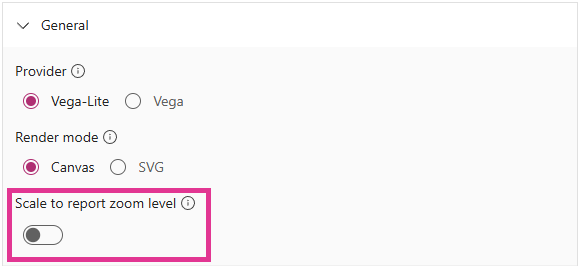
When enabled, this will use the current report zoom level (or preview zoom level) to calculate the appropriate scaling when rendering your visual. While this will not provide 100% parity with SVG in terms of crispness, it provides significantly improved fidelity of a rendered visual at different zoom levels.
This is currently implemented as a switchable setting, so we can identify any use cases where this may cause issues before we consider making it the default behavior in a future release. If this works well, we will likely enable it by default before general availability, but we want to give authors the option to test it in their reports and provide feedback.
View and Convert Compiled Vega
One of the most useful features of Vega Editor was that, if working with Vega-Lite, you could see the generated Vega specification directly in the UI. This was great for understanding how to 'think in Vega' and for taking the generated output and immediately using it as the basis for a Vega spec, without needing to start from scratch. This has been requested for Deneb for a long time, and thanks to the new parsing pipeline, it's exciting to finally make it available.
Much like the Vega Editor implementation, this action is irreversible, and will replace your current specification with the generated Vega output. It is recommended that you save a copy of your Vega-Lite specification before using this action, in case you want to revert to it.
You can read more about the feature and how to use it in the Visual Editor documentation.
Better Context Menu Control
Deneb now provides two-level control over the Power BI context menu (right-click). Both settings default to enabled, matching the previous default behavior:
-
Show context menu on right-click: controls whether the Power BI context menu appears on right-click.
- When disabled, right-click events are silently consumed, and no menu is displayed.
- This allows authors to use right-click for their own Vega/Vega-Lite event handlers without the Power BI context menu appearing.
-
Attempt to resolve data point-specific actions: When the context menu is enabled, this controls whether Deneb attempts to resolve the clicked data point for drill-through and other data-specific menu options.
- This option is only available when the context menu is enabled.
Both settings are portable via templates (see below).
Disabling the context menu will still allow context events from the Vega view to be used, so if you wanted to, for example, create a custom context menu in Vega, this will work as expected.
If your current project was created in an earlier version (or you import a template created in an earlier version), Deneb will automatically migrate context menu settings to the new structure. Projects that had data point resolution disabled will be migrated to: context menu shown + data point resolution off, preserving the author's original intent.
Data View Split: Source vs. Vega Datasets
In the debug pane, we previously tried to merge the source data (what Deneb processed and passed into Vega) and the Vega-produced datasets into a single view with a dropdown to select between them. It wasn't always obvious what was happening here, which made it tricky to debug inputs vs. outputs. In this release, the source data and Vega datasets have been split into separate tabs:
- Source: the dataset Deneb hands to Vega, before any Vega-side transforms, with supporting fields intact. This is now the default tab when the debug pane opens, since it's typically the most useful starting point for checking that fields and supporting field configuration are correct.
- Data: the named datasets produced by the Vega view after transforms, still accessed through the existing dataset selector.
The tabs are independent: each remembers its own column sort and current page across tab switches.
A new keyboard shortcut, [Ctrl + Alt + 6], activates the Source tab. Existing shortcuts for Data ([Ctrl + Alt + 7]), Signals ([Ctrl + Alt + 8]) and Logs ([Ctrl + Alt + 9]) are unchanged.
Alongside the split, the debug pane has had some additional polish:
- Tooltips on each tab carry definition-style copy plus the keyboard hotkey hint.
- No more "loading flicker" for quick updates to data (< 150ms).
- Accessibility improvements - suitable
ariaattributes are now exposed on each tab so the shortcut is discoverable by assistive technology, and the loading container reportsaria-busywhile a processing task is in-flight.
Refer to Debug Pane for the updated layout and behavior.
Internal Signal Changes
The parsing and rendering pipeline changes have given us a chance to reflect upon the naming convention of internally-generated signals that we use to support Deneb and integration with Power BI features. These are now intended to be prefixed with their intended purpose.
The legacy pbi-prefixed signals are now deprecated. To ensure continuity, Deneb will re-map these signals internally when your spec is parsed. However, you will see a warning in the logs to switch to the new deneb-prefixed signal names, e.g.:

It is recommended that you adjust your specifications to match the new names at the earliest possible opportunity, and the suggested migration strategy for each signal is as follows:
| Signal Name | Migration Strategy |
|---|---|
pbiContainer | denebContainer |
pbiContainerHeight | denebContainer.height |
pbiContainerWidth | denebContainer.width |
$schema: Warning and Quick Fix
If you generate or find a specification elsewhere, it may (for good reasons) have the $schema property, which is important for validation of a Vega or Vega-Lite specification.
However, this is an overload in the context of Deneb, because if you try to use a spec with this property in the editor, it will try to resolve the schema from that URL, which will fail, because external requests are not permitted in a certified Power BI Visual. This prevents features such as auto-completion, inline documentation, and validation from working.
For consistency with the language specification, Deneb will manually add the appropriate $schema URL when generating an exportable template and ensure that it is stripped out when you import a template through the Create new specification dialog, but doesn't make any decisions around the content you add to the JSON editor. This has been quite a sizable gap in the documentation to date, so it has been updated to provide better guidance on this behavior.
In this release, there's also a more prominent warning for this occurrence, which can be inspected further on hover, e.g.:
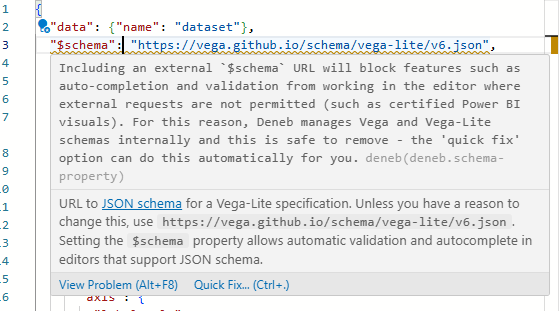
If you so wish, clicking the Quick Fix... button will remove the affected $schema property from the editor for you.
Scrollbar Configuration and Placement
Scrollbars on the report canvas and in the editor's preview area have been rebuilt. The visible improvements:
- No more background bleed on fitted visuals. The previous scroll container reserved a few pixels of gutter space even when the content fit exactly, causing a strip of the report background to leak along the edge of the visual. The new scrollbars overlay the content and reserve no gutter.
- There is also a new Scrollbar width setting in the Scrollbars formatting card (default
10px, minimum8px, maximum16px) - The Scrollbar radius maximum has been widened to
8px(previously3px) to complement it.
Refer to the Scrolling and Overflow page for more details on these settings.
Report Canvas Keyboard Focus
Power BI custom visuals don't support keyboard focus when tabbing around visuals on the canvas without some additional work. In this release, you'll be able to press [Enter] when the visual has tab focus from the canvas to set focus to the internal portion of the Deneb visual. This will then allow you to tab through any focusable elements in the editor or viewer, and interact with them using the keyboard as expected.
This will also work when using the Editor interface, but you may need to remember that if focus is set to the JSON editor, you'll need to press [Ctrl + M] on Windows or [Ctrl + Shift + M] on Mac to toggle Tab trapping and allow you to tab around Deneb's UI.
- When viewing a visual, pressing [Esc] will return focus to the canvas, allowing you to continue tabbing to the next visual.
- In the editor interface (if focus is outside the Monaco editor), the [Esc] key will set focus to Power BI's Back to report action so that you can return to the canvas.
Vega and Vega-Lite don't currently surface their rendered marks, axes, or legends as focusable elements, so in view mode, the only things that can receive Tab focus inside the visual are parameter inputs bound to HTML elements. Everything else in your specification is reachable only via the mouse pointer and screen reader (if the marks have been set up accordingly).
Cell Inspection in Debug Pane
The Data and Signals viewers in the debug pane have been rebuilt around a click-to-inspect model. Previously, long or complex values were truncated with an ellipsis (...) and only partially available via a hover tooltip.
Now every cell is inspectable:
-
Clicking (or pressing Enter / Space when focused) opens a read-only Monaco editor with the full value.
-
Scalar values open in a compact popover using plain text; objects and arrays open in a larger popover with JSON formatting, syntax highlighting, and code folding.
-
For large or complex objects, a shallow copy of the value is displayed, which should be enough to give you an idea of the structure and content without overwhelming the editor or causing performance issues.
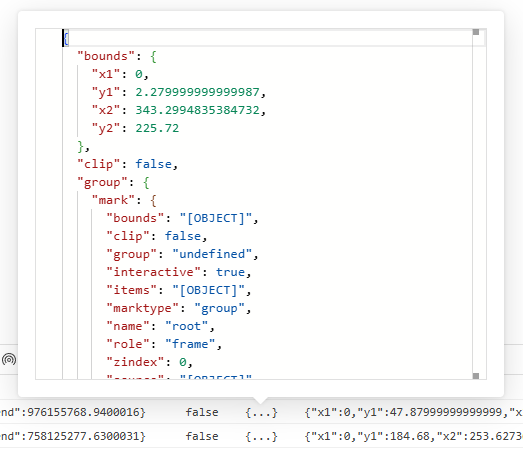
The viewer tables are also now keyboard-navigable as a grid: arrow keys / Home / End to move, Enter / Space to inspect, Escape to close, Tab to leave the grid.
Template Schema v2
The template metadata schema has been updated to v2. The serialized template JSON now uses usermeta.datasets (a record keyed by dataset name) in place of usermeta.dataset (a flat array), and placeholder keys include their owning dataset name (for example, __dataset.0__ rather than __0__).
- Templates produced by earlier versions of Deneb continue to import cleanly - Deneb rewrites the structure to v2 on load, so no action is required from end users.
- New templates must follow the v2 shape. Placeholder keys are validated against the pattern
__<dataset>.<index>__; custom names like__myField__(valid in v1) are no longer accepted. The published v2 JSON schema can be used to validate templates before import. - The change applies only to the serialized template JSON. The visual's UI, PBIR capabilities, and runtime behavior are unaffected.
Refer to the Templates page for the full structure.
Vega Updates
- Vega updated to 6.4.0 (from 6.2.0)
- Vega-Lite updated to 6.4.3 (from 6.4.1)
Performance and Stability
-
Core row processing is ~20% faster than 1.9 after data has been received from Power BI.
-
The separation of editor-specific assets and functionality, such as Monaco editor initialization and warming up of Vega JSON schemas, has been more tightly gated. This includes less 'locking' of the UI when moving between the viewer and editor states (#581).
-
Only the locales supported by MS are now included, which improves the packaged visual size (#593).
If your locale is missing, please let us know!Whilst your locale may be on the unsupported list, if it previously worked for you with
pbiFormat, please create an issue, and we'll add it back in for you. -
Internal JSON schema validation dependencies have been normalized, removing duplicated code (#595).
The resulting changes have reduced the package size to 1.74 MB: a reduction of 5% vs. 1.9.0 and 19% vs. 1.7.0.
Bug Fixes
- The background for the debug pane toolbar and log viewer was incorrectly set to transparent, making them difficult to read in dark mode (#604)
- Creating custom
heightand/orwidthsignals will break compilation (#417). - "View mode" viewport not being correctly used when opening visual editor from within a report page group (#620).
- Tokenization was skipping field names when they were being used as string literals in expressions (#521).
What Affects PBIR and Templating
Many of the above changes introduce considerations for building visuals using Power BI Enhanced Report Format (PBIR), as well as template construction. Rather than detail this information in each feature, each documentation page has been updated accordingly, but a condensed summary of areas to check and update if you have tooling around this are as follows:
| Feature | Visual property changes | Template changes |
|---|---|---|
| Template schema v2 | No changes to visual properties. | usermeta.dataset (flat array) replaced by usermeta.datasets (record keyed by dataset name). Placeholder key format tightened to __<dataset>.<index>__. V1 templates are migrated automatically on import. |
| Field parameters | New property objects.stateManagement.consolidateFieldParameters (bool); controls whether field parameter components are grouped into array-valued columns. | New kind: 'parameter' entries in the template's datasets[<name>][] metadata to track exported field parameters. Assigning a regular column or measure to a parameter slot on import auto-enables consolidation and flags the field. |
| Supporting fields configuration | Two new properties: objects.stateManagement.supportFieldConfiguration (text, JSON-serialized per-field flag map) and objects.stateManagement.denebMetaVersion (text, used to detect legacy projects and trigger migration). | Template deneb.metaVersion has been bumped to 2. Per-field supportFieldConfiguration is embedded inside each datasets[<name>][] entry. |
| Continuous view | Two new properties: objects.dataLimit.enableIncrementalDataUpdates (toggles patching) and objects.dataLimit.incrementalUpdateThreshold (upper row count at which patching is attempted). | No changes to template structure. |
| Canvas scaling | New property for canvas scaling: objects.stateManagement.scaleToZoom | No changes to template structure. |
| Context menu control | New property for context menu control: objects.interactivity.enableContextMenuSelector; existing enableContextMenu property is re-purposed to toggle context menu visibility. | A new interactivity.contextMenuSelector property is available to track whether to use selectors in the context menu. The existing interactivity.enableContextMenu property is re-purposed to toggle context menu visibility. |